

Every account you own depends on one simple question that a website has to answer before it does anything else: Is the person making this request really who they say they are?
The process of answering that question is called authentication. We go through it every day without giving it much thought. You type a password, approve a notification on your phone, or scan your fingerprint, and a few moments later you're logged in.
But what is the website actually checking?
In this article, we'll look at what authentication really means, how it differs from two other security terms that people often mix it up with, and the different ways modern applications can verify your identity. The goal isn't to learn how to build a login form, but to understand why so many authentication methods exist and what each one is trading away. Once you understand those trade-offs, choosing between them becomes much easier.
One thing this article doesn't cover is what happens after you successfully log in. Proving who you are is only the first step. Keeping you logged in across future requests is a different problem with its own design.
Here, we're only focusing on the moment where you prove your identity.
What authentication actually means#
Authentication is the process of proving your identity. You claim to be a particular user, and the website asks for evidence before it accepts that claim. The reason evidence is needed at all is that the claim arrives from outside, and a server can never trust your browser to be honest about who is sitting behind it.
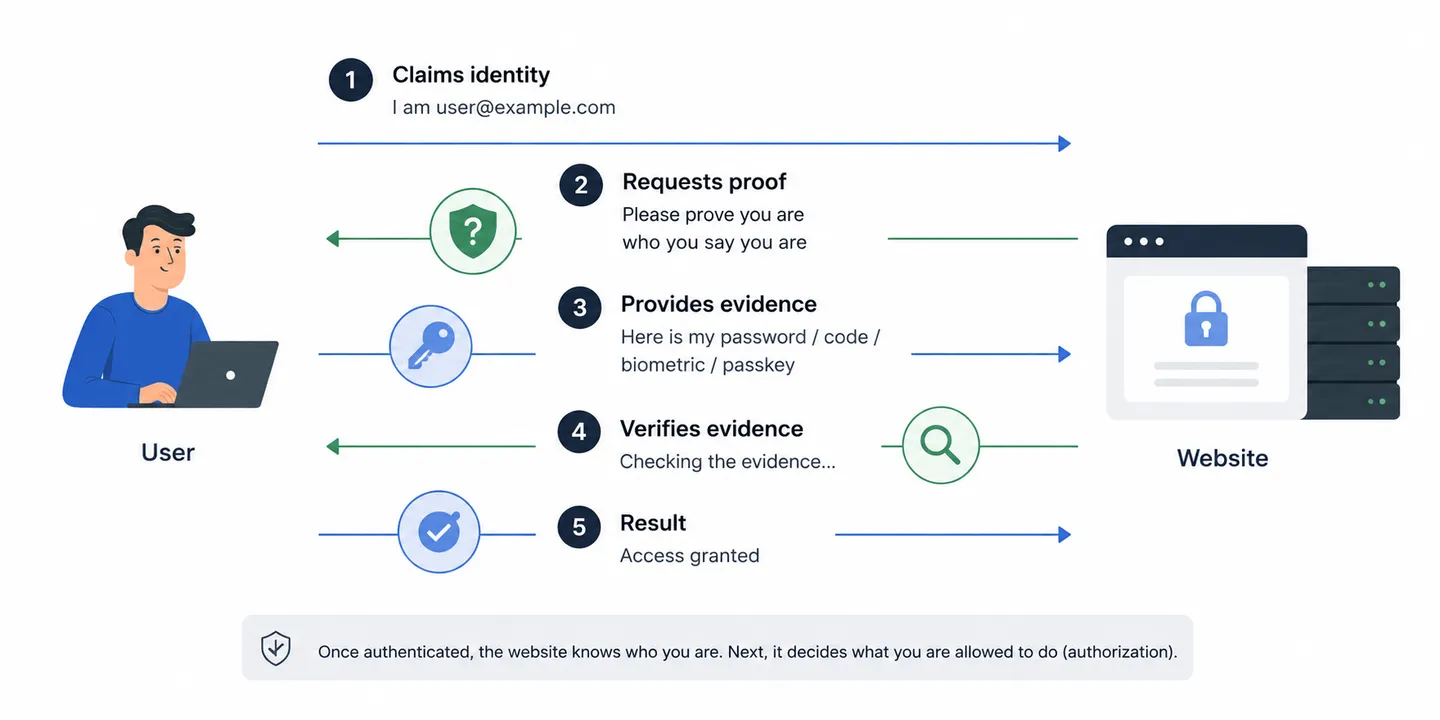
Authenticate = Prove you are who you say you are.
That evidence comes in the form of an authentication factor. A factor is simply a type of evidence you can provide, and almost every authentication method you've ever used fits into one of these three categories:
- Something you know, like a password or PIN.
- Something you have, like your phone or a hardware security key.
- Something you are, like your fingerprint or face.
Each factor has its own weaknesses. Passwords can be guessed or stolen, phones and security keys can be lost, and biometrics can't be changed if they're ever compromised. That's why modern authentication often combines multiple factors instead of relying on just one.
Authentication vs identification vs authorization: what's the difference?#
Now that we know what authentication is, let's clear up two other terms that are often confused with it: identification and authorization.
Identification is simply telling the website who you are, for example by entering your email address. It's only a claim, and anyone can type someone else's email address, so by itself it proves nothing.
Authorization is a different question that only comes after authentication succeeds. Instead of asking who are you?, it asks what are you allowed to do? Can this user view this page, delete this record, or access this API?
Think "I See Zones" (I C Z):
- Identification → I identify myself as Duke.
- AuthentiCation → The website confirms it's really me.
- AuthoriZation → Now that it knows who I am, it decides which zones I can access.
Mixing these terms up can lead to real security bugs. A website might correctly verify that a user is logged in but forget to check whether they're allowed to access a particular resource, allowing them to see or modify someone else's data.
What are the main authentication methods?#
Now that we know the three authentication factors, the different login methods start to make much more sense. They aren't random technologies, they're simply different ways of proving your identity.
| Method | Authentication factor | Passwordless | Security |
|---|---|---|---|
| Password | Something you know | ❌ | ⭐⭐☆☆☆ |
| SMS OTP | Something you have | ✅ | ⭐⭐☆☆☆ |
| Email OTP | Something you have | ✅ | ⭐⭐☆☆☆ |
| Authenticator app (TOTP) | Something you have | ✅ | ⭐⭐⭐⭐☆ |
| Magic link | Something you have | ✅ | ⭐⭐⭐☆☆ |
| Push notification | Something you have | ✅ | ⭐⭐⭐⭐☆ |
| Passkey (WebAuthn) | Something you have + Something you are* | ✅ | ⭐⭐⭐⭐⭐ |
| Social login | Delegates authentication to another provider | ✅ | ⭐⭐⭐⭐☆ |
*Most passkeys are unlocked with a fingerprint or face, combining two authentication factors in a single step.
We'll start with the simplest methods and gradually move to the more advanced ones:
Passwords#
Passwords are the most common form of authentication and the classic example of something you know.
When you enter your password, the website verifies it before allowing you to sign in. A well-designed website never stores your actual password. Instead, it stores a password hash, a one-way mathematical transformation created using algorithms such as bcrypt or Argon2.
When you log in, your password is hashed again and the two hashes are compared. If they match, the website knows you've entered the correct password without ever needing to store or recover the original one.
Your password
      ↓
Hashing algorithm (bcrypt / Argon2)
      ↓
Password hash stored in the database
If you'd like to understand why this works, and why websites can't recover your original password, I explain it in why websites can't tell you your password.
Their biggest advantage is simplicity. They don't require any special hardware, everyone knows how to use them, and they're supported almost everywhere.
Their biggest weakness is us. People reuse passwords across websites, choose weak ones, or get tricked into entering them on fake login pages.
One-time password (OTP)#
A one-time password (OTP) is a short code that can only be used once. Even if someone steals the code after you've used it, it becomes useless because it has already expired or has already been used.
OTPs can be used in two ways:
- Instead of a password, as the primary way to authenticate.
- Together with a password, as two-factor authentication (2FA) or multi-factor authentication (MFA).
MFA is simply the more general term for using two or more authentication factors. Two-factor authentication (2FA) is the most common type of MFA.
In the case of 2FA/MFA, after entering your password, you're asked for a second piece of information, such as a code from your phone. This makes your account much more secure because an attacker now needs two different authentication factors instead of just one.
The three most common ways to receive or generate an OTP are:
- SMS codes
- Email codes
- Authenticator apps (TOTP)
SMS codes#
SMS codes are a common form of something you have.
When you set it up, you register your phone number with the website. Whenever it needs to verify your identity, it generates a one-time code and sends it as a text message to that number.
For example:
Your ExampleSite verification code is 482913.
This code expires in 5 minutes.
The security of SMS authentication depends on your phone number. If someone manages to take over that number, they can receive your verification codes instead. One way this can happen is through SIM swapping, where an attacker transfers your phone number to another SIM card.
We'll see why authenticator apps and passkeys avoid this problem in the next sections.
Email codes#
Email codes also use something you have, but instead of sending the code by SMS, the website sends it to your email inbox.
This is generally more convenient, but your account is now only as secure as your email account. If someone gains access to your email, they can receive your login codes too.
When you register your email address, the website can send you a one-time code whenever it needs to verify your identity.
Same as sms code but in your email:
Your ExampleSite verification code is 482913.
This code expires in 5 minutes.
Entering the correct code proves you have access to the registered email account.
Authenticator apps (TOTP)#
Authenticator apps such as Google Authenticator or Microsoft Authenticator are installed on your phone and are used as a second authentication factor.
How it works
- Install an authenticator app on your phone.
- On the website, enable two-factor authentication and scan the QR code with the app.
- The website and the app now share a unique secret that's linked to your account.
- Every 30 seconds, both use that shared secret together with the current time to independently calculate a new six-digit code. Since they both start with the same information, they always arrive at the same result without communicating with each other.
These codes are called Time-based One-Time Passwords (TOTP) because a new code is generated every 30 seconds using the current time.
The shared secret never leaves your device after setup, and no code is sent over the network. This makes authenticator apps much more secure than SMS or email codes.
If you lose the device containing your authenticator app, you may also lose access to your codes. That's why most websites provide backup codes or other recovery methods that you should save when enabling two-factor authentication.
Magic links#
A magic link removes the need for a password. Instead, you enter your email address and receive a one-time link. Clicking that link proves you have access to your email account and authenticates you automatically.
When you request a magic link, the website generates a unique link that's tied to your account and sends it to your email. Opening that email and clicking the link is enough to prove your identity.
Like email OTPs, magic links rely on something you have, access to your email account. The only difference is that instead of typing a code, you simply click a secure link.
The biggest advantage is convenience. There's no password to remember and no code to copy.
The trade-off is that your account is only as secure as your email account. If someone gains access to your inbox, they can also use the magic links sent to you.
Push notifications#
Push-based authentication is commonly used as part of two-factor authentication (2FA), but it's also used to approve sensitive actions such as payments, password changes, or signing in from a new device.
Whenever the website needs you to confirm your identity or approve an action, it sends a notification to your registered device. The app displays a message such as "Are you trying to sign in?" or "Approve this payment?", and you simply tap Approve or Deny.
Like authenticator apps, this is an example of something you have. Since you never have to type a code, it's both convenient and much harder for attackers to trick you into entering your credentials on a fake website.
One weakness is prompt fatigue. If attackers repeatedly trigger authentication or approval requests, some users eventually tap Approve just to stop the notifications, even though they weren't the ones initiating the action.
Passkeys#
Passkeys are one of the biggest improvements in authentication in recent years. They were designed to replace passwords with something that's both easier to use and much more secure.
Instead of creating a password that you have to remember, your device creates two cryptographic keys that belong together. One key is stored by the website, while the other stays securely on your device and never leaves it.
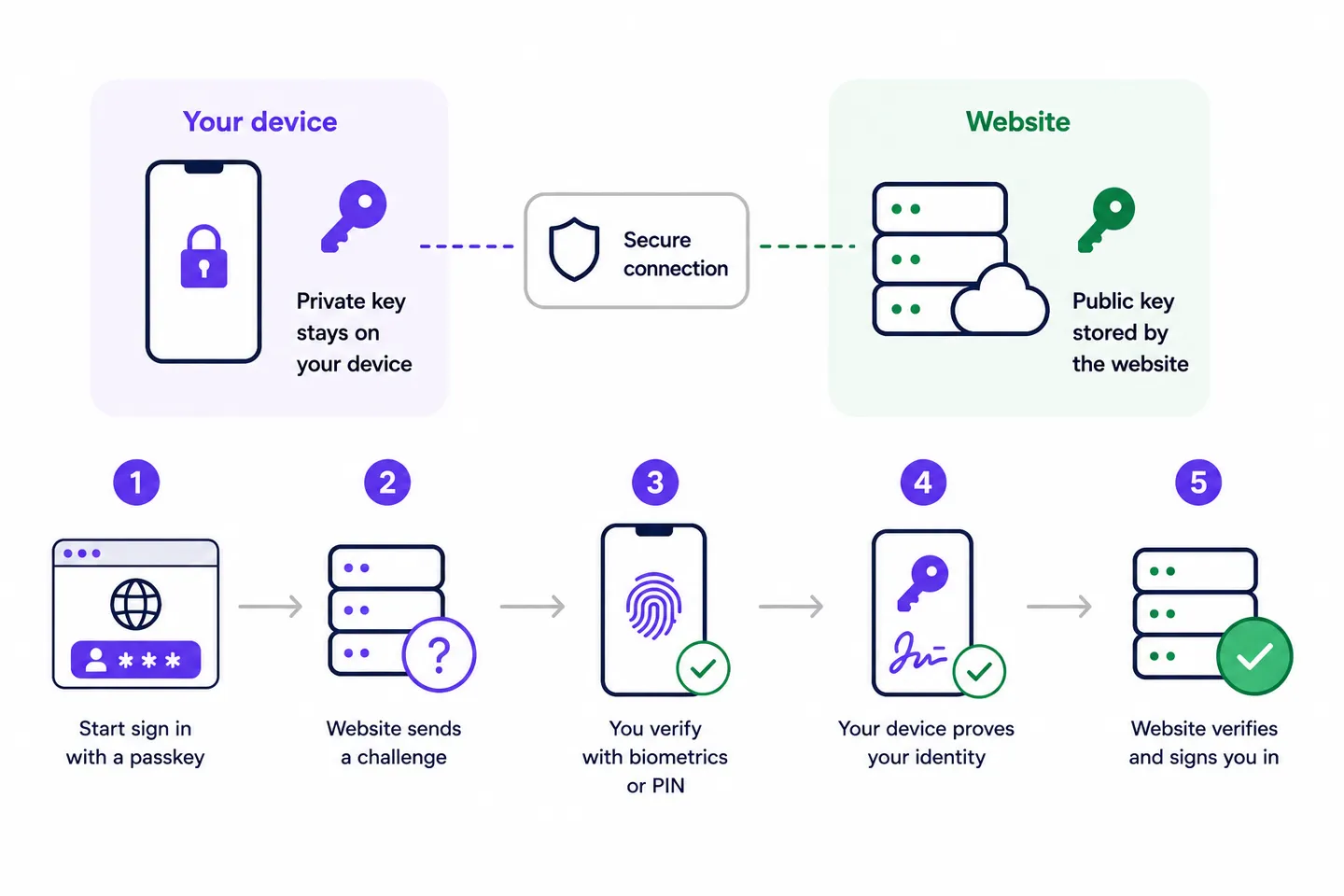
Whenever you authenticate, your device uses its key to show the website that it's really you. Because the secret key never leaves your device, there's no password to steal, reuse, or accidentally enter on a fake website.
This is what makes passkeys phishing-resistant. Since there's no shared secret to type, there's nothing for a fake login page to capture, even if you're tricked into visiting one.
Most passkeys are unlocked using your fingerprint or face. That means they combine something you have (your device) with something you are (your biometric), giving you a fast login without sacrificing security.
Social login#
Buttons like Continue with Google, Sign in with GitHub, or Continue with Apple are examples of social login.
Instead of creating another password, you simply use an account you already have with Google, GitHub, Apple, or another provider to prove your identity.
Behind the scenes, this is powered by OAuth and OpenID Connect.
The biggest advantage is reducing the number of passwords you need to create and maintain.
The trade-off is that the website no longer verifies your identity itself, it trusts another provider to do that on its behalf. If that provider becomes unavailable or your account is compromised, it can affect your access to every website that relies on it.
Different methods, same goal#
Every authentication method we've looked at answers the same question:
"How can the website be confident that it's really you?"
Passwords, one-time codes, magic links, push notifications, passkeys, and social login all solve that problem in different ways. Some prioritize convenience, others prioritize security, and many try to balance both.
Once your identity has been verified, though, the authentication process is over. The next challenge is remembering that you've already proved who you are without asking you to do it again on every request.
Frequently asked questions#
Why do some websites still use passwords?#
Passwords are simple, familiar, and work on every device. Although passkeys are generally more secure, many websites continue to support passwords for compatibility and because migrating existing users takes time.
Can a website use more than one authentication method?#
Yes. Many websites let you choose between multiple methods, such as a password, a passkey, or social login. Some also combine methods, for example by asking for a password followed by a one-time code as part of two-factor authentication.
Which authentication method is the most secure?#
There isn't a single answer because it depends on the situation. In general, passkeys are currently one of the strongest options because they resist phishing and don't rely on shared secrets like passwords.
What happens if I lose my phone?#
Most services provide recovery methods, such as backup codes, recovery keys, or an alternative authentication method. It's a good idea to set these up before you need them.
Can I use biometrics without passkeys?#
Yes. Biometrics can unlock many different secrets stored on your device, not just passkeys.
Continue the series#
You've seen how websites verify your identity. The next step is understanding how they remember it.
The articles below build on one another, following what happens after authentication succeeds.
- How user authentication works: the main methods (You're reading this)
- Cookies vs Sessions vs Tokens: How websites keep you logged in
- JWT authentication explained (Coming soon)